 Skurda
Registra automaticamente i pagamenti con Wallet
Con questa automazione, ogni volta che paghi avvicinando una carta o un biglietto salvato in Wallet, il telefono ti propone di registrare la spesa in Skurda, senza aprire l'app a mano.
Questa guida è per iOS 26 e precedenti. Hai iOS 27 o successivo? Apri la guida per iOS 27, con il comando già pronto.
Guarda il video con tutti i passaggi:
Tocca i numeri per segnare i passaggi che hai fatto: il telefono se li ricorda, anche se esci e torni. Nelle immagini, le frecce rosse indicano dove toccare, in ordine.
-
Apri Comandi Rapidi, vai alla scheda Automazioni in basso, poi tocca il + in alto a destra.
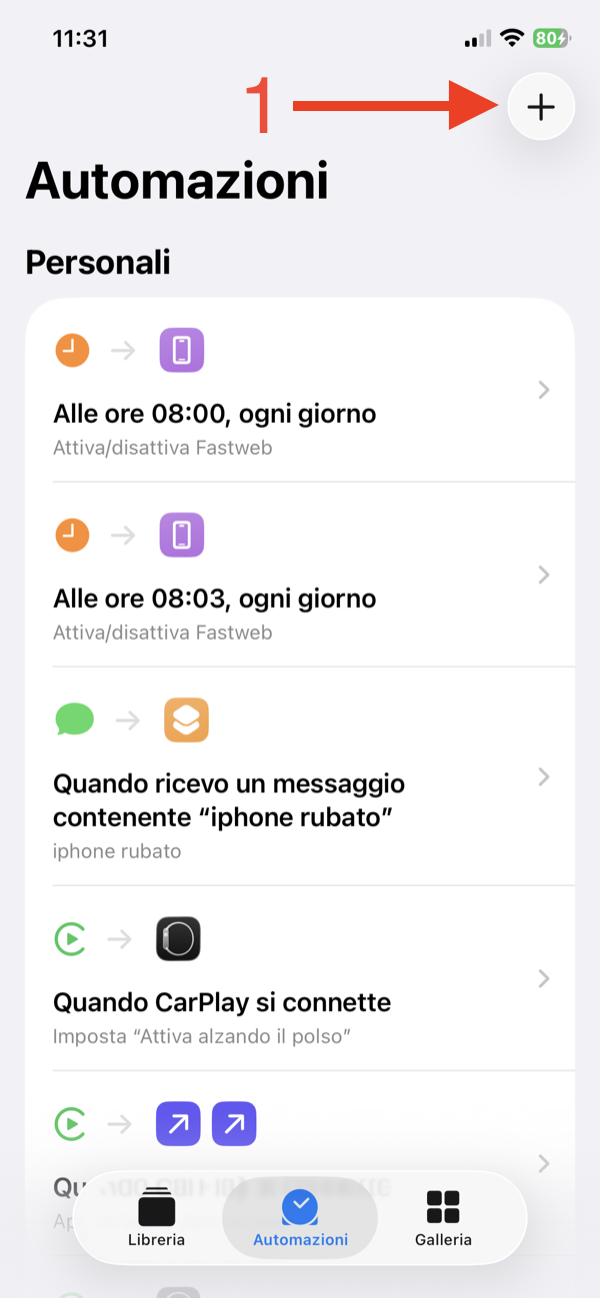
La scheda Automazioni e il + in alto a destra. -
Nell'elenco dei trigger, scorri fino a Wallet e selezionalo.
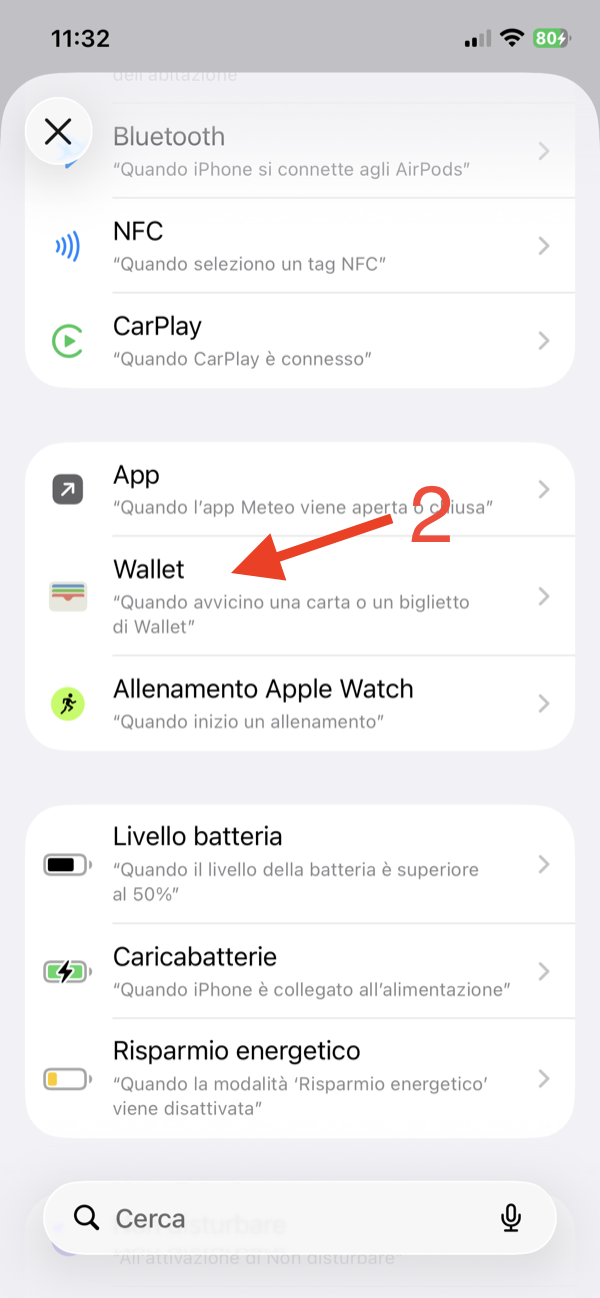
Wallet, nel gruppo insieme ad App e Allenamento Apple Watch. -
Non cambiare niente su carte e categorie: lasciale tutte selezionate. Scegli Esegui immediatamente, lascia disattivata Notifica in caso di esecuzione e tocca Avanti.
Se preferisci seguire una sola carta, scegli quella in cima alla schermata. La notifica puoi anche attivarla, ma poi ne ricevi una a ogni pagamento.
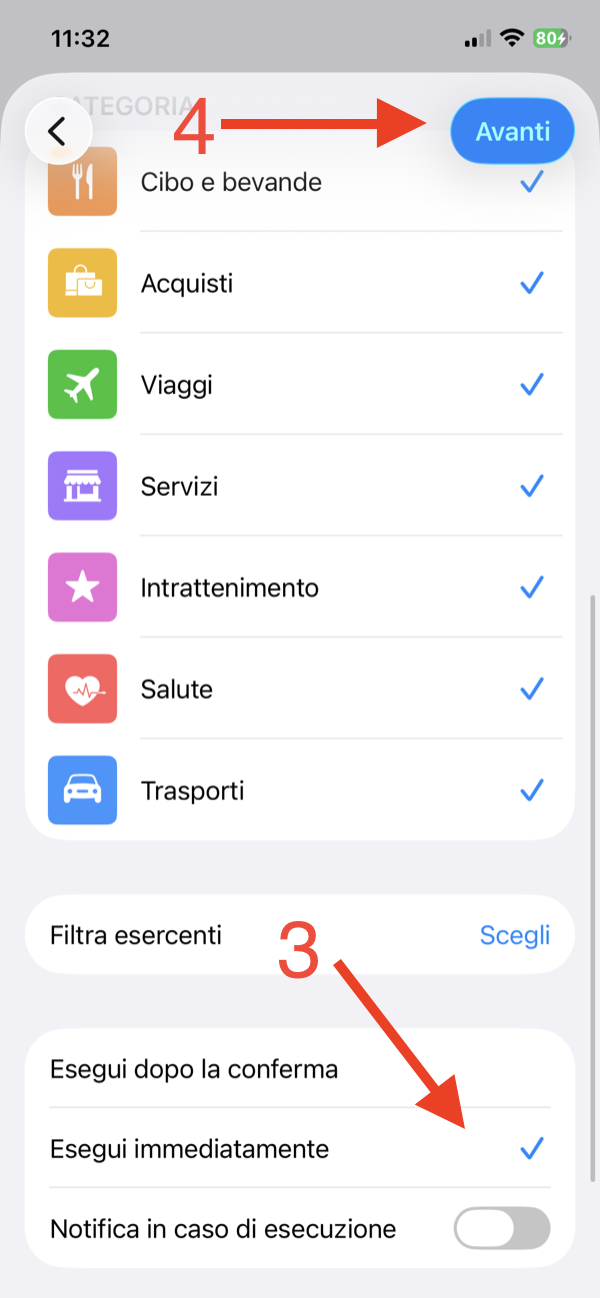
Esegui immediatamente, poi Avanti. -
Tocca Crea nuovo comando rapido.
-
Nella barra Cerca azioni scrivi Skurda, poi tocca l'azione Registra pagamento.
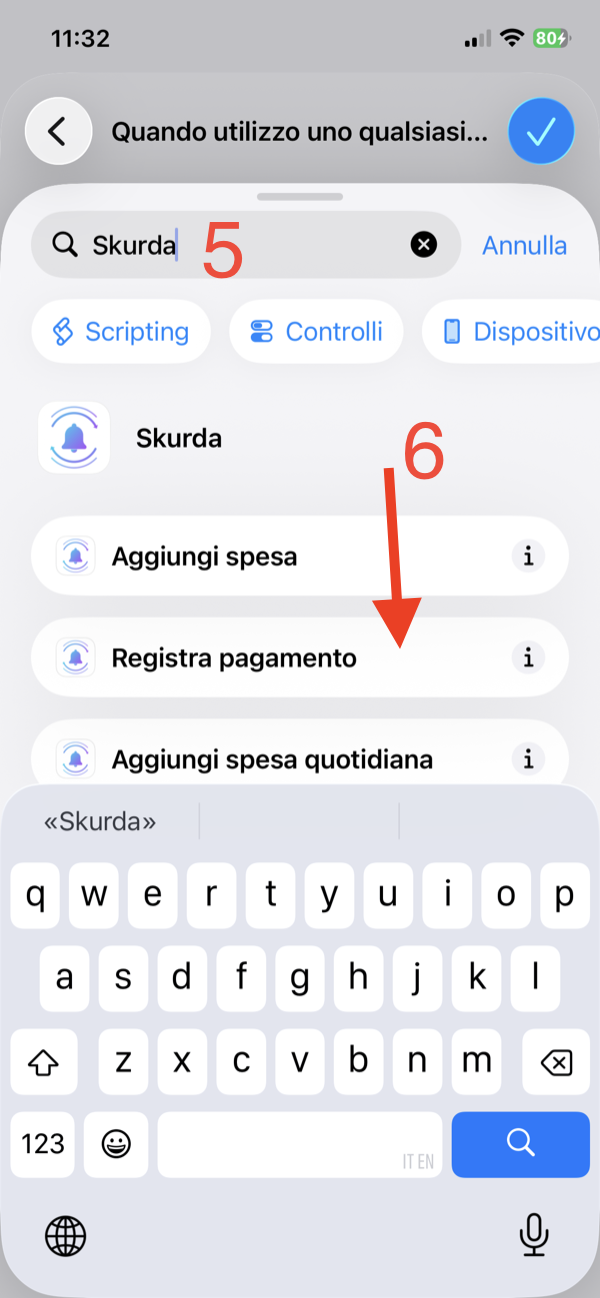
Cerca «Skurda», poi Registra pagamento. -
Compare il blocco «Registra Importo pagati a Esercente». Tocca il campo Importo: sopra la tastiera appare Input comando rapido — toccalo. Poi fai la stessa cosa con il campo dopo pagati a.
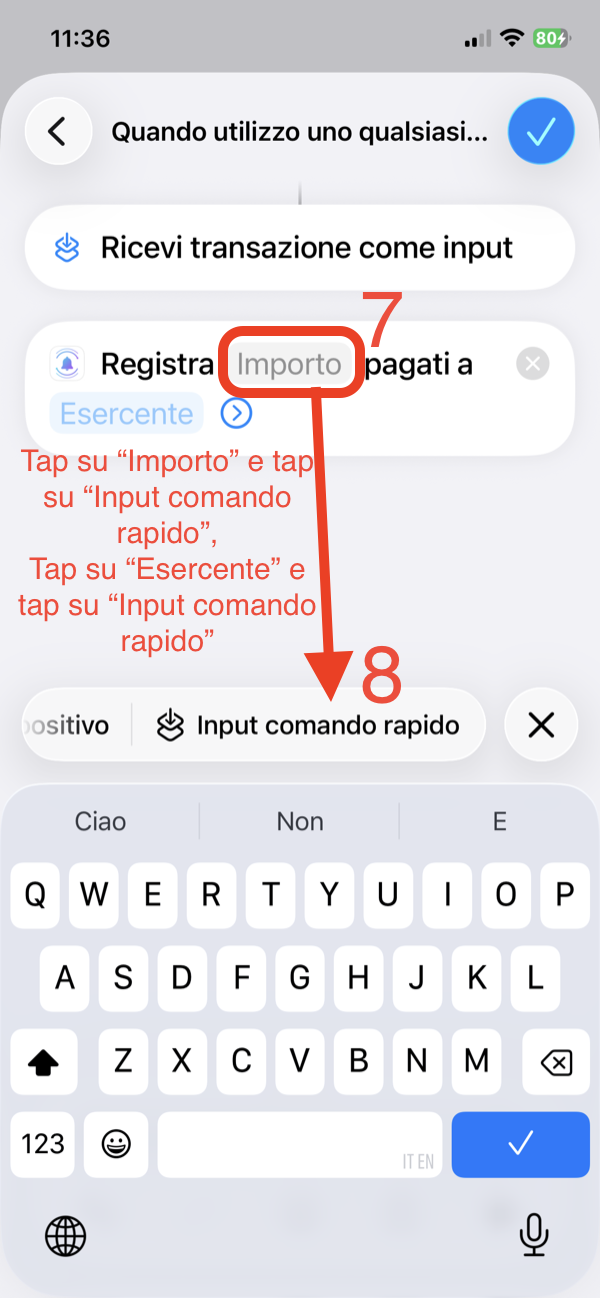
Tocca il campo, poi Input comando rapido sopra la tastiera — una volta per campo. -
Fermati un attimo e controlla: tutti e due i campi devono dire «Input comando rapido». È il punto in cui ci si ferma più spesso. Se ne vedi uno solo, ripeti il passaggio precedente sull'altro campo.
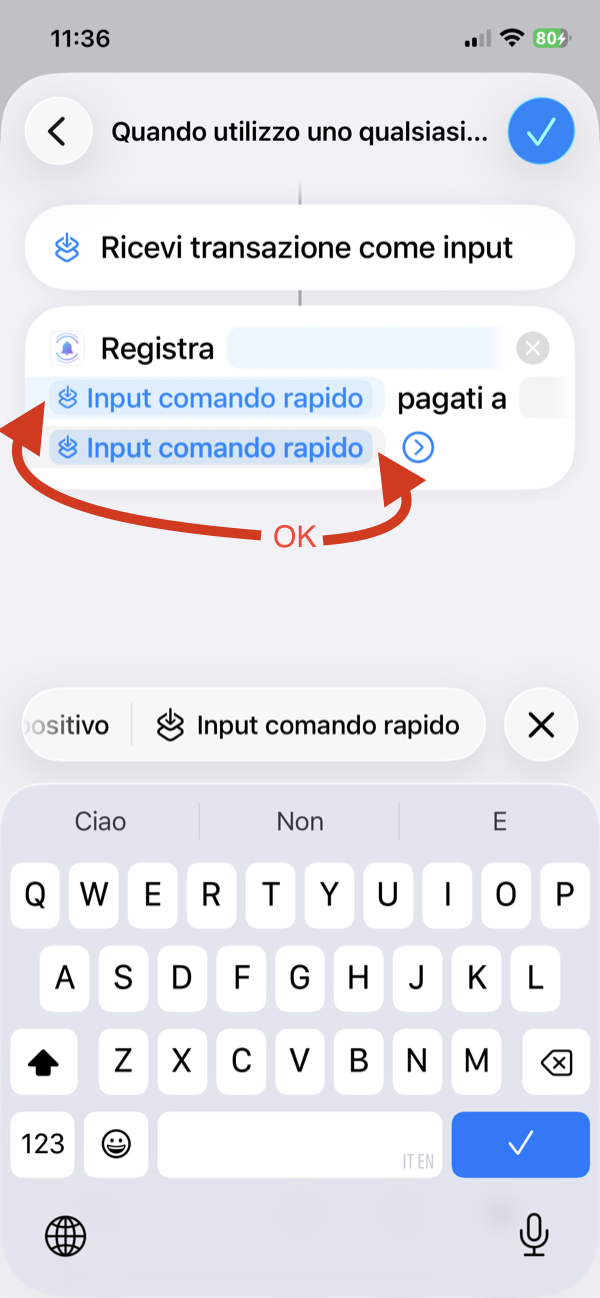
Così devono essere i due campi prima di andare avanti. -
Tocca il primo Input comando rapido e scegli Importo dal menu. Tocca il secondo e scegli Esercente.
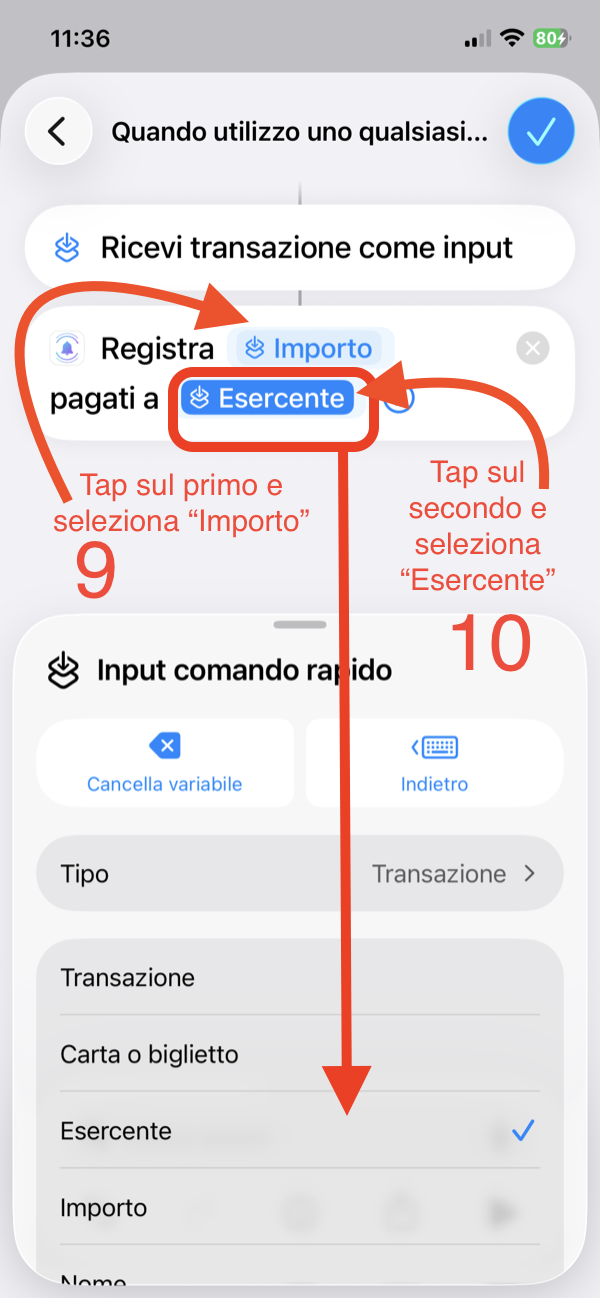
Dal menu: Importo per il primo campo, Esercente per il secondo. -
Conferma con la spunta blu in alto a destra. L'automazione è attiva.
Come capire se ha funzionato
Non devi provare niente adesso: al primo pagamento contactless ci pensa il telefono. Dopo averlo fatto, apri Skurda — se il pagamento corrisponde a una spesa ricorrente che già segui, la trovi spuntata come pagata; altrimenti lo trovi tra le spese quotidiane, con il nome dell'esercente.
Se non è successo niente, torna in Comandi Rapidi → Automazioni e controlla che l'automazione ci sia e non sia disattivata.
Se il pagamento corrisponde a una spesa ricorrente che hai già in Skurda, viene spuntata come pagata; se non corrisponde a nessuna, diventa una nuova spesa quotidiana — non va persa.
Preferisci non configurare l'automazione? Puoi comunque registrare un pagamento in un tocco: condividi lo screenshot della notifica di pagamento con Skurda dal foglio "Condividi" di iOS — negozio, importo e data si riconoscono da soli, tu confermi prima di salvare.
Hai avuto difficoltà a configurarla? Scrivici a feedbacksr@icloud.com.
Automatically log payments with Wallet
With this automation, every time you pay by tapping a card or pass saved in Wallet, your phone will prompt you to log the expense in Skurda — no need to open the app manually.
This guide is for iOS 26 and earlier. Do you have iOS 27 or later? Open the iOS 27 guide, with a ready-made shortcut.
Watch the video walkthrough:
Tap the numbers to mark the steps you've done: your phone remembers them, even if you leave and come back. In the pictures, the red arrows show where to tap, in order.
-
Open Shortcuts, go to the Automation tab at the bottom, then tap + in the top right.
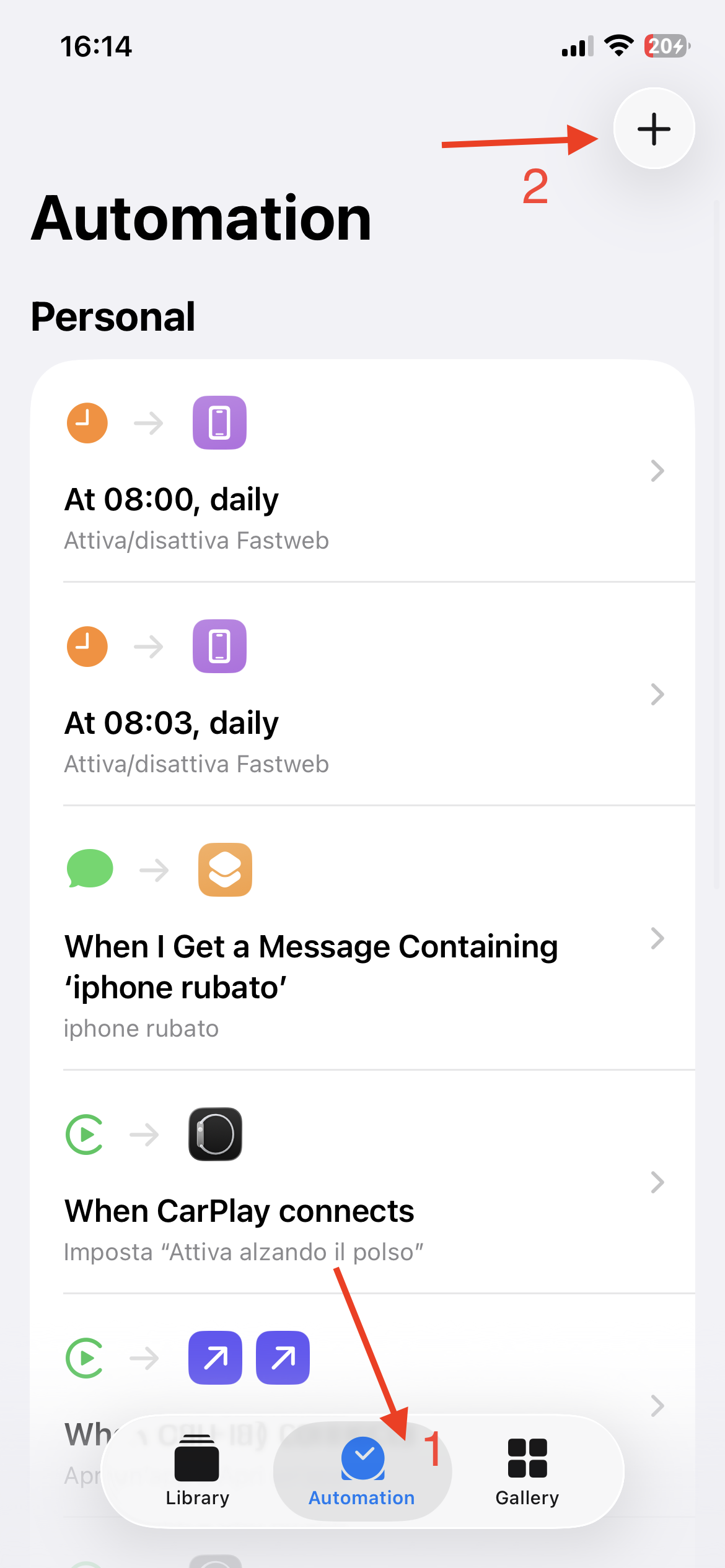
The Automation tab and the + in the top right. -
In the list of triggers, scroll down to Wallet and select it.
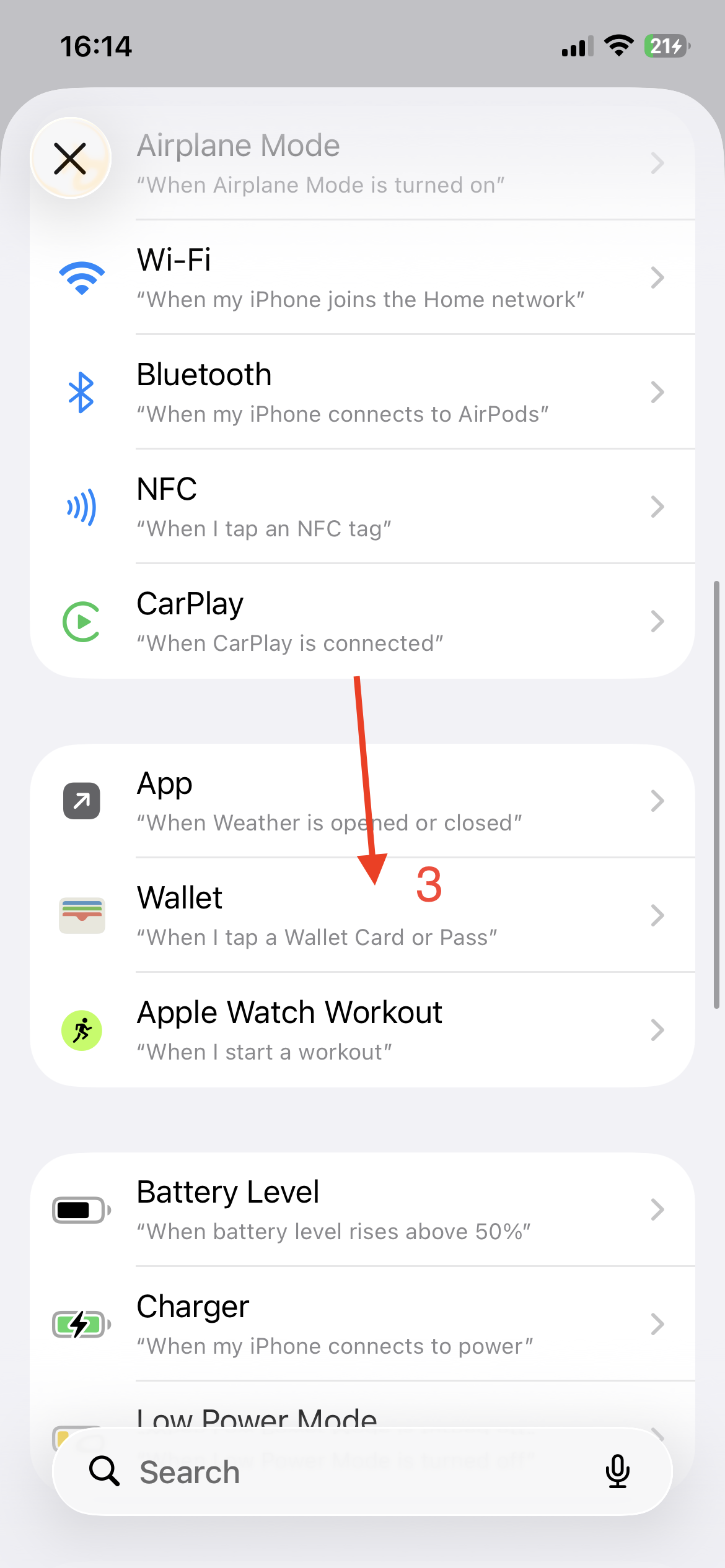
Wallet, in the group with App and Apple Watch Workout. -
Don't change anything about cards and categories — leave them all selected. Choose Run Immediately, leave Notify When Run off, and tap Next.
If you'd rather follow a single card, pick it at the top of the screen. You can turn the notification on, but then you'll get one with every payment.
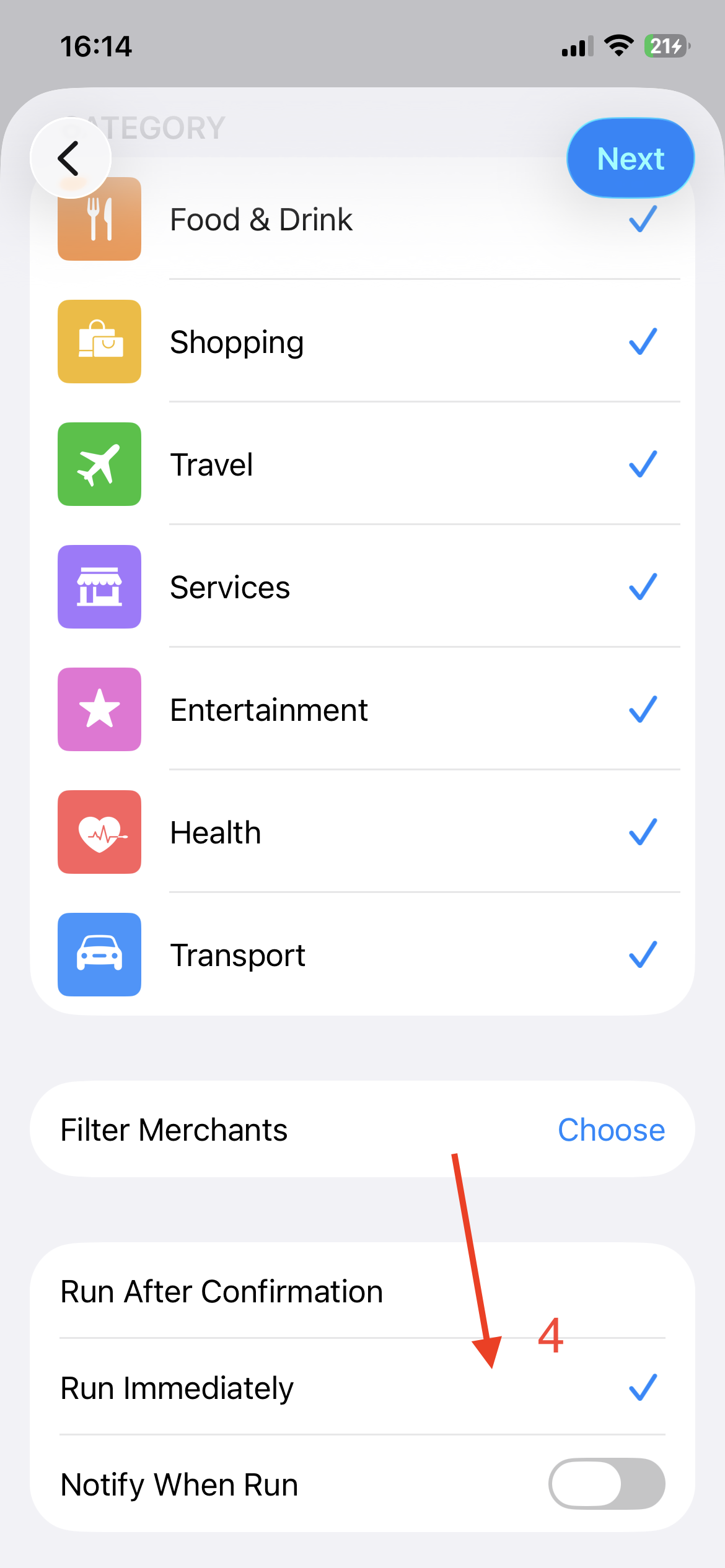
Run Immediately, then Next. -
Tap Create New Shortcut.
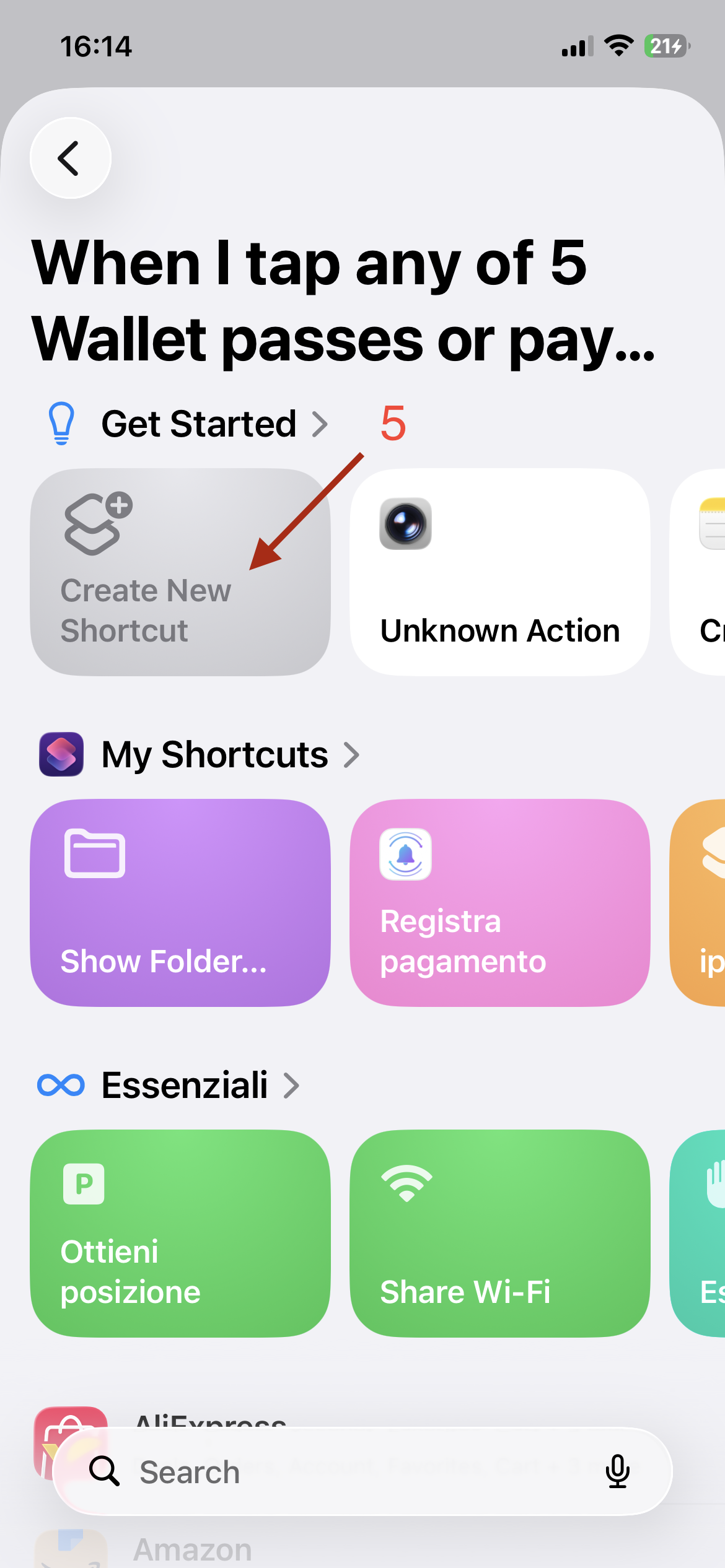
Create New Shortcut. -
In the Search actions bar type Skurda, then tap the Record Payment action.
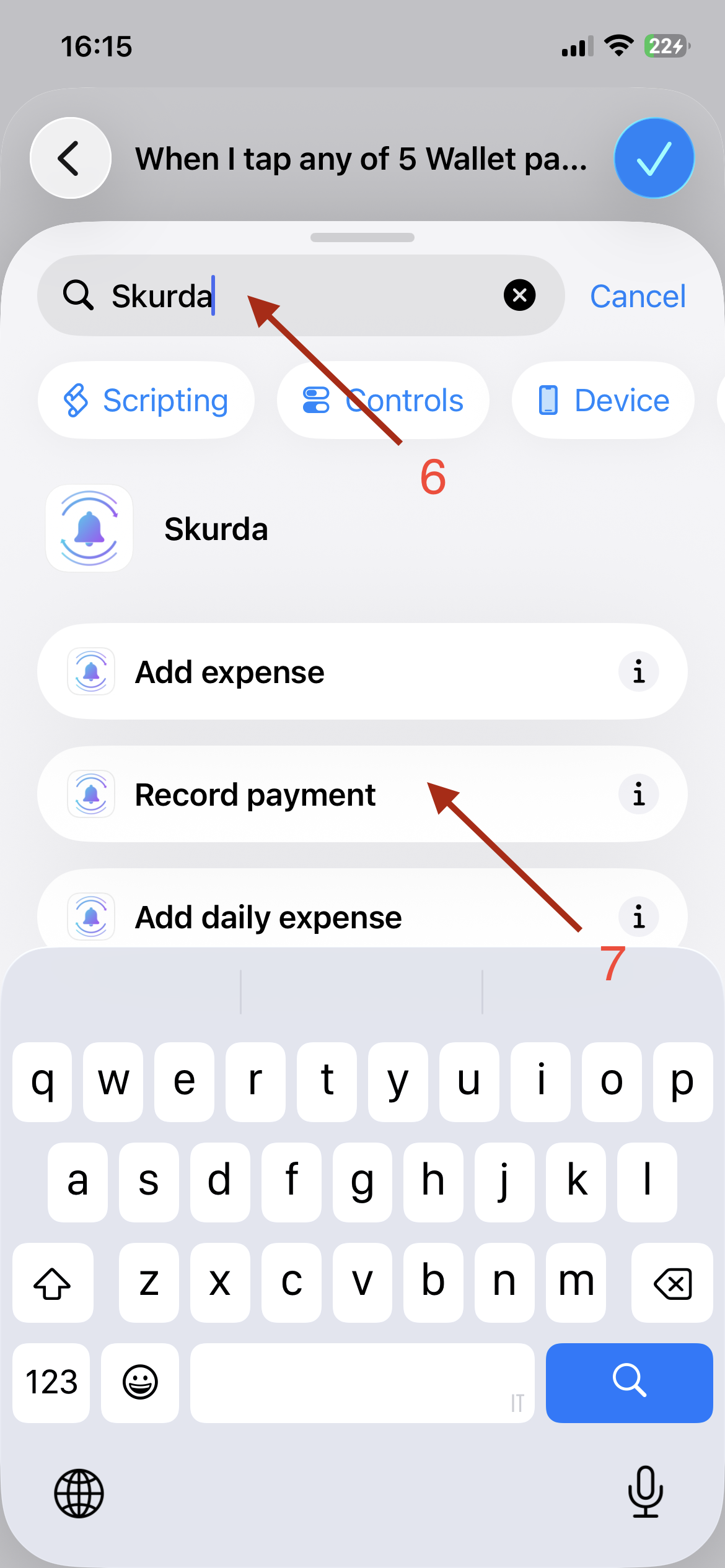
Search "Skurda", then Record Payment. -
The block "Record Amount paid to Merchant" appears. Tap the Amount field: Shortcut Input appears above the keyboard — tap it. Then do the same with the field after paid to.
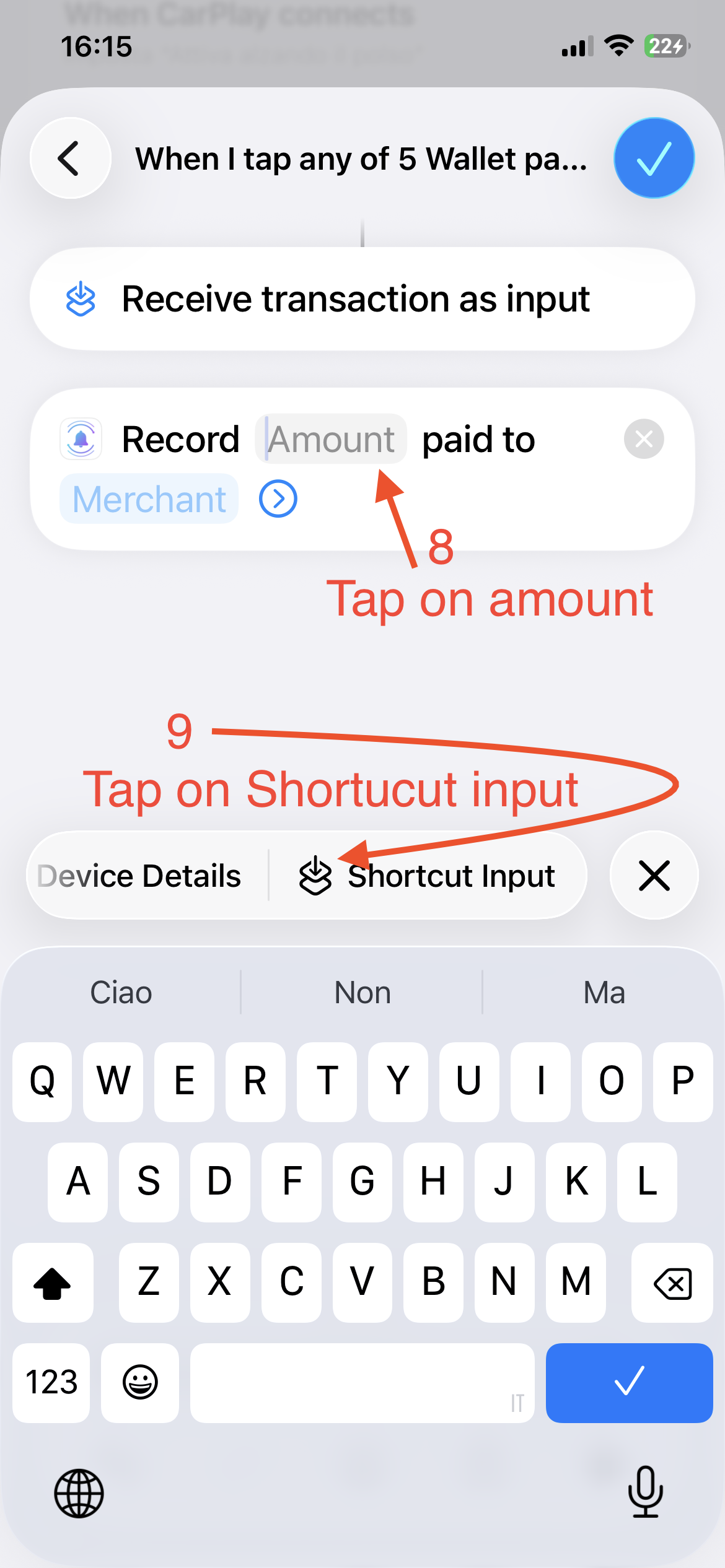
Tap the field, then Shortcut Input above the keyboard — once per field. -
Stop for a second and check: both fields must say "Shortcut Input". This is where people get stuck most often. If you only see one, repeat the previous step on the other field.
-
Tap the first Shortcut Input and choose Amount from the menu. Tap the second one and choose Merchant.
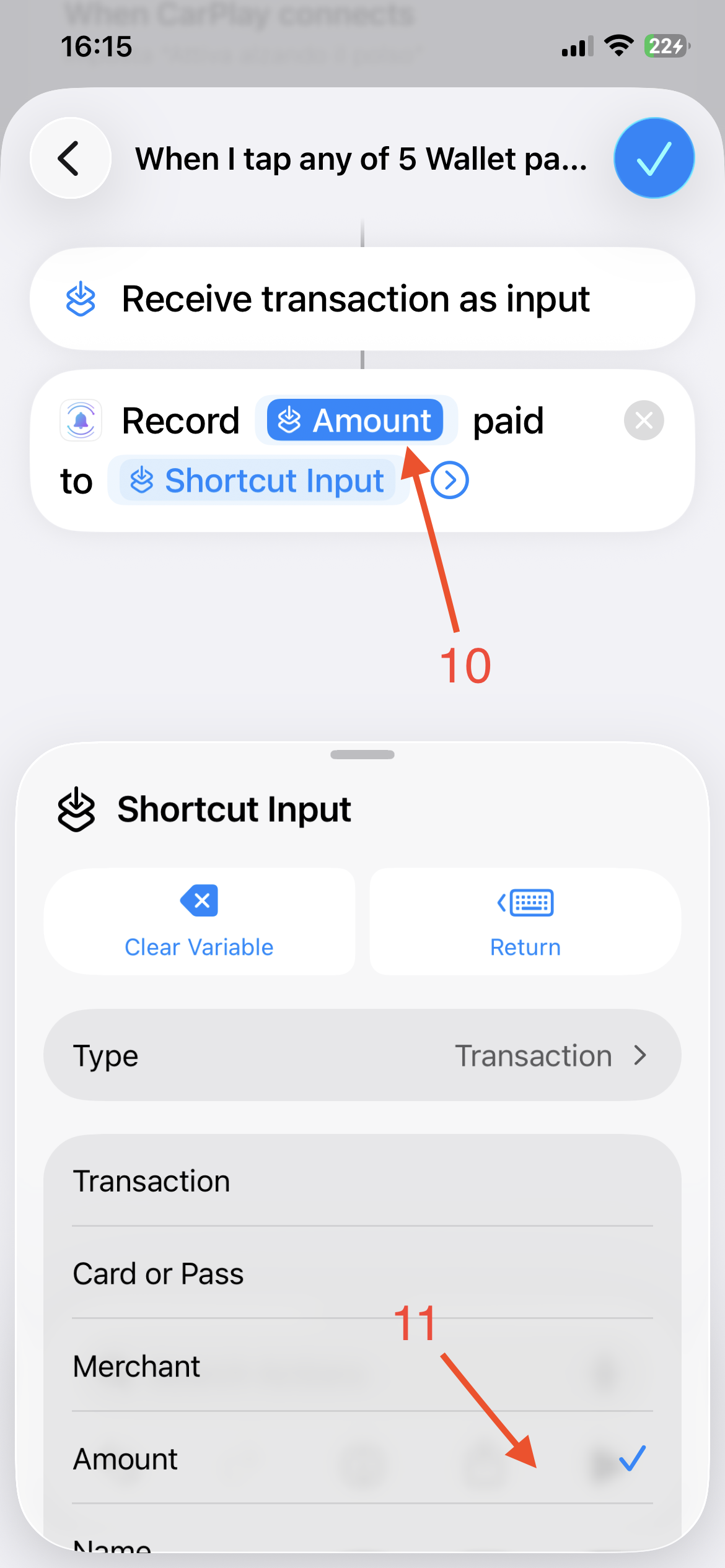
From the menu, Amount for the first field. 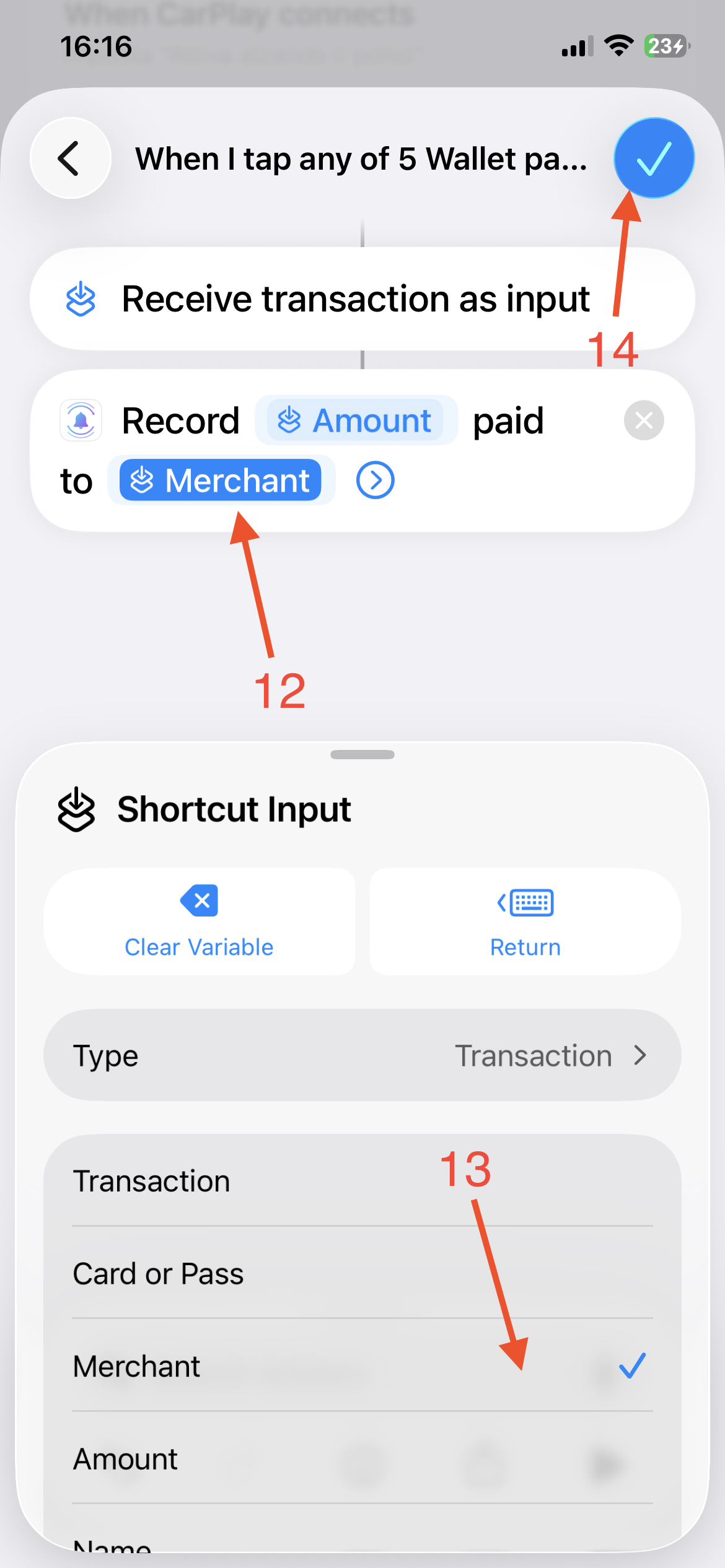
Merchant for the second field, then the blue checkmark. -
Confirm with the blue checkmark in the top right. The automation is live.
How to tell it worked
There's nothing to test right now: your phone handles it at your first contactless payment. Once you've made one, open Skurda — if the payment matches a recurring expense you already track, you'll find it ticked as paid; otherwise you'll find it among your daily expenses, under the merchant's name.
If nothing happened, go back to Shortcuts → Automation and check that the automation is there and hasn't been turned off.
If the payment matches a recurring expense you already track, Skurda marks it as paid; if it doesn't match any, it becomes a new daily expense instead — nothing gets lost.
Would rather not set up the automation? You can still log a payment with a single tap: share the payment notification's screenshot with Skurda from iOS's "Share" sheet — merchant, amount and date are recognised on their own, and you confirm before anything is saved.
Having trouble setting it up? Email us at feedbacksr@icloud.com.
Registra automáticamente los pagos con Wallet
Con esta automatización, cada vez que pagues acercando una tarjeta o un pase guardado en Wallet, tu teléfono te propondrá registrar el gasto en Skurda, sin necesidad de abrir la app manualmente.
Esta guía es para iOS 26 y anteriores. ¿Tienes iOS 27 o posterior? Abre la guía para iOS 27, con el atajo ya preparado.
Mira el vídeo con todos los pasos:
Toca los números para marcar los pasos que ya has hecho: el teléfono los recuerda, aunque salgas y vuelvas. En las imágenes, las flechas rojas indican dónde tocar, en orden.
-
Abre Atajos, ve a la pestaña Automatización (abajo) y toca el + arriba a la derecha.
La pestaña Automatización y el + arriba a la derecha. -
En la lista de disparadores, baja hasta Wallet y selecciónalo.
Wallet, en el grupo junto a App y Entrenamiento del Apple Watch. -
No cambies nada en tarjetas y categorías: déjalas todas seleccionadas. Elige Ejecutar inmediatamente, deja desactivado Notificar en caso de ejecución y toca Siguiente.
Si prefieres seguir una sola tarjeta, elígela arriba en la pantalla. Puedes activar la notificación, pero entonces recibirás una con cada pago.
Ejecutar inmediatamente, después Siguiente. -
Toca Crear nuevo atajo.
Crear nuevo atajo. -
En la barra Buscar acciones escribe Skurda y toca la acción Registrar pago.
Busca «Skurda», después Registrar pago. -
Aparece el bloque «Registrar Importe pagado a Comercio». Toca el campo Importe: encima del teclado aparece Entrada de acceso directo — tócala. Después haz lo mismo con el campo que sigue a pagado a.
Toca el campo y después Entrada de acceso directo encima del teclado — una vez por campo. -
Párate un momento y comprueba: los dos campos deben decir «Entrada de acceso directo». Es donde más gente se queda atascada. Si solo ves uno, repite el paso anterior en el otro campo.
-
Toca la primera Entrada de acceso directo y elige Importe en el menú. Toca la segunda y elige Comercio.
En el menú, Importe para el primer campo.
Comercio para el segundo campo y luego la marca azul. -
Confirma con la marca de verificación azul arriba a la derecha. La automatización ya está activa.
Cómo saber si ha funcionado
No tienes que probar nada ahora: en el primer pago contactless se encarga el teléfono. Cuando lo hayas hecho, abre Skurda — si el pago coincide con un gasto recurrente que ya tienes, lo encontrarás marcado como pagado; si no, lo encontrarás entre los gastos del día a día, con el nombre del comercio.
Si no ha pasado nada, vuelve a Atajos → Automatización y comprueba que la automatización esté ahí y no esté desactivada.
Si el pago coincide con un gasto recurrente que ya tienes en Skurda, se marca como pagado; si no coincide con ninguno, se convierte en un nuevo gasto del día a día — no se pierde nada.
¿Prefieres no configurar la automatización? Puedes registrar un pago igualmente con un toque: comparte la captura de la notificación de pago con Skurda desde el panel "Compartir" de iOS — comercio, importe y fecha se reconocen solos, y confirmas antes de guardar nada.
¿Tuviste dificultades para configurarla? Escríbenos a feedbacksr@icloud.com.
Enregistrez automatiquement les paiements avec Wallet
Avec cette automatisation, chaque fois que vous payez en approchant une carte ou un billet enregistré dans Wallet, votre téléphone vous proposera d'enregistrer la dépense dans Skurda, sans avoir à ouvrir l'application manuellement.
Ce guide est pour iOS 26 et versions antérieures. Vous avez iOS 27 ou plus récent ? Ouvrez le guide pour iOS 27, avec le raccourci déjà prêt.
Regardez la vidéo avec toutes les étapes :
Touchez les numéros pour cocher les étapes déjà faites : votre téléphone s'en souvient, même si vous quittez la page et revenez. Sur les images, les flèches rouges indiquent où appuyer, dans l'ordre.
-
Ouvrez Raccourcis, allez dans l'onglet Automatisation (en bas), puis appuyez sur le + en haut à droite.
L'onglet Automatisation et le + en haut à droite. -
Dans la liste des déclencheurs, descendez jusqu'à Wallet et sélectionnez-le.
Wallet, dans le groupe avec App et Entraînement Apple Watch. -
Ne changez rien aux cartes ni aux catégories : laissez tout sélectionné. Choisissez Exécuter immédiatement, laissez Notifier en cas d'exécution désactivé, puis appuyez sur Suivant.
Si vous préférez ne suivre qu'une seule carte, choisissez-la en haut de l'écran. Vous pouvez activer la notification, mais vous en recevrez une à chaque paiement.
Exécuter immédiatement, puis Suivant. -
Appuyez sur Créer un nouveau raccourci.
Créer un nouveau raccourci. -
Dans la barre Rechercher des actions, tapez Skurda, puis appuyez sur l'action Enregistrer un paiement.
Recherchez « Skurda », puis Enregistrer un paiement. -
Le bloc « Enregistrer Montant payé à Marchand » apparaît. Touchez le champ Montant : Entrée du raccourci apparaît au-dessus du clavier — touchez-la. Faites ensuite la même chose avec le champ après payé à.
Touchez le champ, puis Entrée du raccourci au-dessus du clavier — une fois par champ. -
Arrêtez-vous un instant et vérifiez : les deux champs doivent afficher « Entrée du raccourci ». C'est là qu'on se bloque le plus souvent. Si vous n'en voyez qu'un, refaites l'étape précédente sur l'autre champ.
-
Touchez la première Entrée du raccourci et choisissez Montant dans le menu. Touchez la seconde et choisissez Marchand.
Dans le menu, Montant pour le premier champ.
Marchand pour le second champ, puis la coche bleue. -
Confirmez avec la coche bleue en haut à droite. L'automatisation est active.
Comment savoir si ça a marché
Rien à tester maintenant : au premier paiement sans contact, le téléphone s'en charge. Une fois que c'est fait, ouvrez Skurda — si le paiement correspond à une dépense récurrente que vous suivez déjà, vous la trouverez cochée comme payée ; sinon, vous le trouverez parmi les dépenses quotidiennes, au nom du commerçant.
Si rien ne s'est passé, retournez dans Raccourcis → Automatisation et vérifiez que l'automatisation est bien là et qu'elle n'a pas été désactivée.
Si le paiement correspond à une dépense récurrente déjà suivie dans Skurda, elle est marquée comme payée ; sinon, il devient une nouvelle dépense quotidienne — rien n'est perdu.
Vous préférez ne pas configurer l'automatisation ? Vous pouvez tout de même enregistrer un paiement en un geste : partagez la capture de la notification de paiement avec Skurda depuis le panneau « Partager » d'iOS — commerçant, montant et date sont reconnus seuls, et vous confirmez avant tout enregistrement.
Des difficultés à la configurer ? Écrivez-nous à feedbacksr@icloud.com.
Wallet-Zahlungen automatisch erfassen
Mit dieser Automation schlägt dir dein Handy bei jeder Zahlung mit einer in Wallet gespeicherten Karte oder einem Pass vor, die Ausgabe in Skurda zu erfassen — ohne die App manuell öffnen zu müssen.
Diese Anleitung gilt für iOS 26 und früher. Du hast iOS 27 oder neuer? Öffne die Anleitung für iOS 27, mit fertigem Kurzbefehl.
Schau dir das Video mit allen Schritten an:
Tippe auf die Nummern, um erledigte Schritte abzuhaken: dein Handy merkt sie sich, auch wenn du die Seite verlässt und zurückkommst. Auf den Bildern zeigen die roten Pfeile der Reihe nach, wo du tippen musst.
-
Öffne Kurzbefehle, geh zum Tab Automation (unten) und tippe oben rechts auf das +.
Der Tab Automation und das + oben rechts. -
Scrolle in der Liste der Auslöser zu Wallet und wähle es aus.
Wallet, in der Gruppe mit App und Apple Watch Workout. -
Ändere nichts an Karten und Kategorien — lass alle ausgewählt. Wähle Sofort ausführen, lass Bei Ausführung benachrichtigen deaktiviert und tippe auf Weiter.
Wenn du lieber nur eine Karte verfolgen möchtest, wähle sie oben auf dem Bildschirm aus. Die Benachrichtigung kannst du einschalten, dann bekommst du aber bei jeder Zahlung eine.
Sofort ausführen, dann Weiter. -
Tippe auf Neuen Kurzbefehl erstellen.
Neuen Kurzbefehl erstellen. -
Gib in der Leiste Aktionen suchen Skurda ein und tippe dann auf die Aktion Zahlung erfassen.
„Skurda" suchen, dann Zahlung erfassen. -
Der Block „Betrag bezahlt an Händler erfassen" erscheint. Tippe auf das Feld Betrag: über der Tastatur erscheint Kurzbefehl-Eingabe — tippe darauf. Mach dann dasselbe mit dem Feld nach bezahlt an.
Auf das Feld tippen, dann auf Kurzbefehl-Eingabe über der Tastatur — einmal pro Feld. -
Halt kurz inne und prüfe: beide Felder müssen „Kurzbefehl-Eingabe" anzeigen. Hier bleiben die meisten hängen. Wenn du nur eines siehst, wiederhole den vorherigen Schritt beim anderen Feld.
-
Tippe auf die erste Kurzbefehl-Eingabe und wähle im Menü Betrag. Tippe auf die zweite und wähle Händler.
Im Menü: Betrag für das erste Feld.
Händler für das zweite Feld, dann das blaue Häkchen. -
Bestätige mit dem blauen Häkchen oben rechts. Die Automation ist aktiv.
Woran du merkst, dass es funktioniert
Du musst jetzt nichts testen: bei der ersten kontaktlosen Zahlung übernimmt das Handy. Danach öffnest du Skurda — passt die Zahlung zu einer wiederkehrenden Ausgabe, die du schon erfasst, findest du sie als bezahlt markiert; sonst findest du sie unter den Alltagsausgaben, mit dem Namen des Händlers.
Ist nichts passiert, geh zurück zu Kurzbefehle → Automation und prüfe, ob die Automation da und nicht deaktiviert ist.
Passt die Zahlung zu einer bereits erfassten wiederkehrenden Ausgabe, wird sie als bezahlt markiert; passt sie zu keiner, wird daraus eine neue Alltagsausgabe — nichts geht verloren.
Lieber keine Automatisierung einrichten? Du kannst eine Zahlung trotzdem mit einem Tipp erfassen: Teile den Screenshot der Zahlungsbenachrichtigung mit Skurda über das „Teilen"-Menü von iOS — Geschäft, Betrag und Datum werden von selbst erkannt, und du bestätigst, bevor irgendetwas gespeichert wird.
Hattest du Schwierigkeiten bei der Einrichtung? Schreib uns an feedbacksr@icloud.com.
Registra automaticamente i pagamenti con Wallet
Con questa automazione, ogni volta che paghi avvicinando una carta o un biglietto salvato in Wallet, il telefono registra la spesa in Skurda, senza aprire l'app a mano.
Da iOS 27 è più semplice: il comando è già pronto, devi solo aggiungerlo e accenderlo.
Si apre in Comandi Rapidi. Apri prima Skurda almeno una volta, così il comando la trova.
-
Tocca Aggiungi il comando qui sopra e, in Comandi Rapidi, conferma con Aggiungi comando rapido.
-
In Comandi Rapidi vai su Libreria → Automazioni e apri Skurda-Wallet. Arriva spento: vedi «L'automazione è disattivata».
-
Nel riquadro in alto («Quando Qualsiasi carta viene avvicinata») tocca la freccia e attiva l'interruttore Automazione.
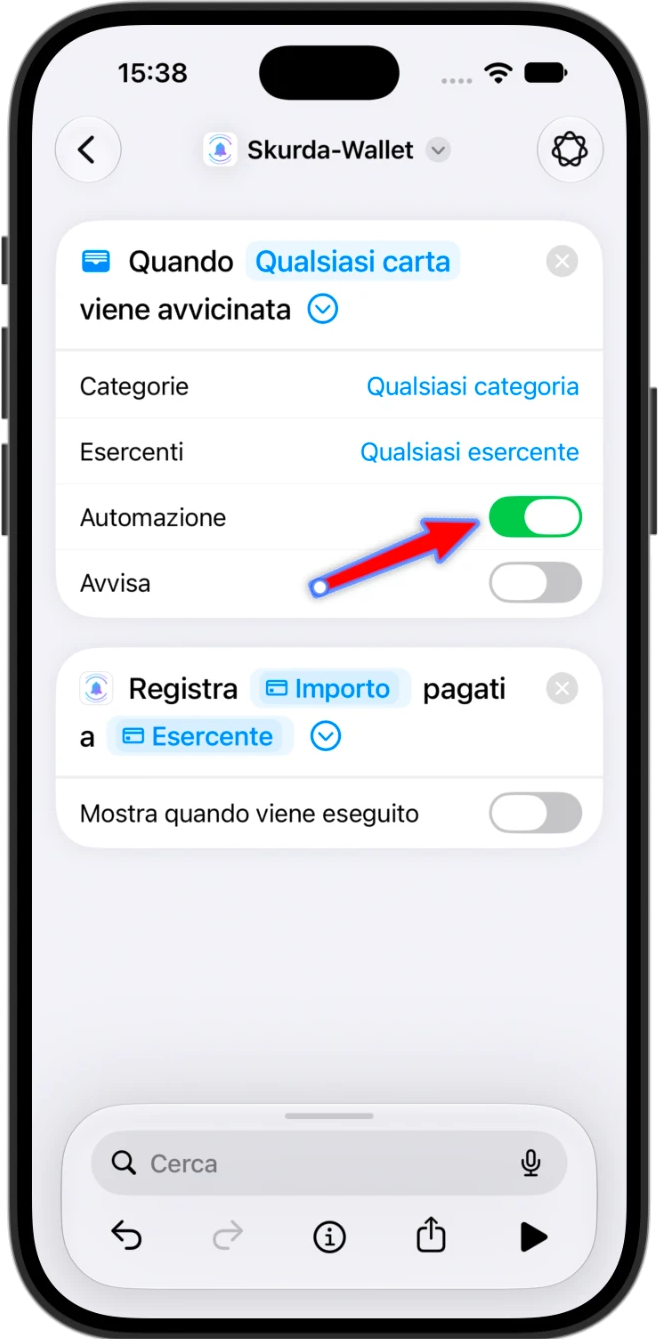
L'interruttore Automazione, acceso.
Come capire se ha funzionato
Non devi provare niente adesso: al primo pagamento contactless ci pensa il telefono. Dopo averlo fatto, apri Skurda: se il pagamento corrisponde a una spesa ricorrente che già segui, la trovi spuntata come pagata; altrimenti lo trovi tra le spese quotidiane, con il nome dell'esercente.
Vuoi vedere una conferma dopo ogni pagamento? Nel comando, sull'azione «Registra» (tocca la freccia per aprirla), attiva Mostra quando viene eseguito. Se non è successo niente, torna in Comandi Rapidi → Automazioni e controlla che l'automazione sia accesa.
Se il pagamento corrisponde a una spesa ricorrente che hai già in Skurda, viene spuntata come pagata; se non corrisponde a nessuna, diventa una nuova spesa quotidiana: non va persa.
Preferisci non usare l'automazione? Puoi comunque registrare un pagamento in un tocco: condividi lo screenshot della notifica di pagamento con Skurda dal foglio "Condividi" di iOS: negozio, importo e data si riconoscono da soli, tu confermi prima di salvare.
Qualcosa non funziona? Scrivici a feedbacksr@icloud.com e ti aiutiamo.
Hai iOS 26 o precedente? Apri la guida per iOS 26.
Registra automaticamente i pagamenti con Wallet
Con questa automazione, ogni volta che paghi avvicinando una carta o un biglietto salvato in Wallet, il telefono registra la spesa in Skurda, senza aprire l'app a mano.
Che versione di iOS hai?
La guida cambia un po' da una versione all'altra: scegli la tua. Lo vedi in Impostazioni → Generali → Info.
Automatically log payments with Wallet
With this automation, every time you pay by tapping a card or pass saved in Wallet, your phone logs the expense in Skurda — no need to open the app manually.
On iOS 27 it's simpler: the shortcut is ready-made, you just add it and turn it on.
It opens in Shortcuts. Open Skurda at least once first, so the shortcut can find it.
-
Tap Add the shortcut above and, in Shortcuts, confirm with Add Shortcut.
-
In Shortcuts, go to Library → Automations and open Skurda-Wallet. It arrives switched off.
-
In the card at the top (the Wallet trigger), tap the arrow and turn on the Automation switch.
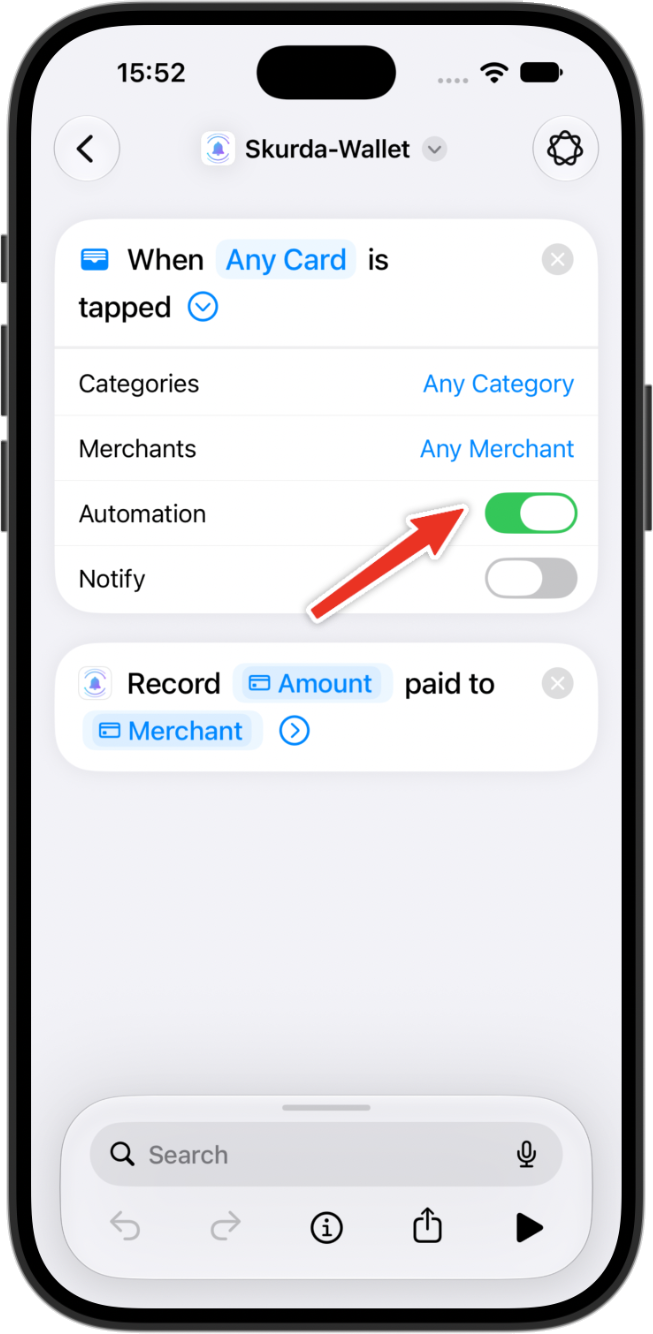
The Automation switch, turned on.
How to tell it worked
You don't need to test anything now: your phone takes care of it at your first contactless payment. After that, open Skurda: if the payment matches a recurring expense you already track, you'll find it ticked as paid; otherwise it appears among your daily expenses, with the merchant's name.
Want to see a confirmation after every payment? In the shortcut, on the "Record" action, tap the arrow and turn on Show When Run. If nothing happened, go back to Shortcuts → Automations and check that the automation is turned on.
If the payment matches a recurring expense you already have in Skurda, it's ticked as paid; if it matches none, it becomes a new daily expense — it won't get lost.
Prefer not to use the automation? You can still log a payment in one tap: share the screenshot of the payment notification with Skurda from the iOS "Share" sheet — the store, amount and date are recognized automatically, and you confirm before saving.
Something not working? Email us at feedbacksr@icloud.com and we'll help.
Do you have iOS 26 or earlier? Open the iOS 26 guide.
Automatically log payments with Wallet
With this automation, every time you pay by tapping a card or pass saved in Wallet, your phone logs the expense in Skurda — no need to open the app manually.
Which version of iOS do you have?
The guide differs a little between versions: pick yours. You can check it in Settings → General → About.
Registra automáticamente los pagos con Wallet
Con esta automatización, cada vez que pagues acercando una tarjeta o un pase guardado en Wallet, tu teléfono registrará el gasto en Skurda, sin necesidad de abrir la app manualmente.
Con iOS 27 es más sencillo: el atajo ya está preparado, solo tienes que añadirlo y activarlo.
Se abre en Atajos. Abre Skurda al menos una vez antes, para que el atajo la encuentre.
-
Toca Añadir el atajo aquí arriba y, en Atajos, confirma con Añadir atajo.
-
En Atajos, ve a Biblioteca → Automatizaciones y abre Skurda-Wallet. Llega desactivado.
-
En el recuadro de arriba (el disparador de Wallet), toca la flecha y activa el interruptor de la automatización.
El interruptor de la automatización, activado.
Cómo saber si ha funcionado
No tienes que probar nada ahora: en el primer pago contactless se encarga el teléfono. Después, abre Skurda: si el pago corresponde a un gasto recurrente que ya sigues, lo verás marcado como pagado; si no, aparecerá entre los gastos diarios, con el nombre del comercio.
¿Quieres ver una confirmación tras cada pago? En el atajo, en la acción de debajo del disparador, toca la flecha y activa Mostrar al ejecutar. Si no ha pasado nada, vuelve a Atajos → Automatizaciones y comprueba que la automatización esté activada.
Si el pago corresponde a un gasto recurrente que ya tienes en Skurda, se marca como pagado; si no corresponde a ninguno, se convierte en un nuevo gasto diario: no se pierde.
¿Prefieres no usar la automatización? Aun así puedes registrar un pago con un toque: comparte la captura de la notificación de pago con Skurda desde la hoja «Compartir» de iOS: el comercio, el importe y la fecha se reconocen solos, y confirmas antes de guardar.
¿Algo no funciona? Escríbenos a feedbacksr@icloud.com y te ayudamos.
¿Tienes iOS 26 o anterior? Abre la guía para iOS 26.
Registra automáticamente los pagos con Wallet
Con esta automatización, cada vez que pagues acercando una tarjeta o un pase guardado en Wallet, tu teléfono registrará el gasto en Skurda, sin necesidad de abrir la app manualmente.
¿Qué versión de iOS tienes?
La guía cambia un poco entre versiones: elige la tuya. Lo ves en Ajustes → General → Información.
Enregistrez automatiquement les paiements avec Wallet
Avec cette automatisation, chaque fois que vous payez en approchant une carte ou un billet enregistré dans Wallet, votre téléphone enregistre la dépense dans Skurda, sans avoir à ouvrir l'application manuellement.
Avec iOS 27, c'est plus simple : le raccourci est déjà prêt, il suffit de l'ajouter et de l'activer.
Il s'ouvre dans Raccourcis. Ouvrez d'abord Skurda au moins une fois, pour que le raccourci la trouve.
-
Touchez Ajouter le raccourci ci-dessus et, dans Raccourcis, confirmez avec Ajouter le raccourci.
-
Dans Raccourcis, allez dans Bibliothèque → Automatisations et ouvrez Skurda-Wallet. Il arrive désactivé.
-
Dans le cadre en haut (le déclencheur Wallet), touchez la flèche et activez l'interrupteur de l'automatisation.
L'interrupteur de l'automatisation, activé.
Comment savoir si ça a fonctionné
Vous n'avez rien à tester maintenant : au premier paiement sans contact, c'est le téléphone qui s'en charge. Ensuite, ouvrez Skurda : si le paiement correspond à une dépense récurrente que vous suivez déjà, vous la trouverez cochée comme payée ; sinon, elle apparaît parmi les dépenses quotidiennes, avec le nom du commerçant.
Vous voulez voir une confirmation après chaque paiement ? Dans le raccourci, sur l'action située sous le déclencheur, touchez la flèche et activez Afficher lors de l'exécution. S'il ne s'est rien passé, retournez dans Raccourcis → Automatisations et vérifiez que l'automatisation est activée.
Si le paiement correspond à une dépense récurrente que vous avez déjà dans Skurda, elle est cochée comme payée ; s'il ne correspond à aucune, il devient une nouvelle dépense quotidienne : il n'est pas perdu.
Vous préférez ne pas utiliser l'automatisation ? Vous pouvez quand même enregistrer un paiement d'un geste : partagez la capture d'écran de la notification de paiement avec Skurda depuis la feuille « Partager » d'iOS : le commerçant, le montant et la date sont reconnus automatiquement, et vous confirmez avant d'enregistrer.
Quelque chose ne fonctionne pas ? Écrivez-nous à feedbacksr@icloud.com et nous vous aiderons.
Vous avez iOS 26 ou antérieur ? Ouvrez le guide pour iOS 26.
Enregistrez automatiquement les paiements avec Wallet
Avec cette automatisation, chaque fois que vous payez en approchant une carte ou un billet enregistré dans Wallet, votre téléphone enregistre la dépense dans Skurda, sans avoir à ouvrir l'application manuellement.
Quelle version d'iOS avez-vous ?
Le guide change un peu d'une version à l'autre : choisissez la vôtre. Vous la trouvez dans Réglages → Général → Informations.
Wallet-Zahlungen automatisch erfassen
Mit dieser Automation erfasst dein Handy bei jeder Zahlung mit einer in Wallet gespeicherten Karte oder einem Pass die Ausgabe in Skurda — ohne die App manuell öffnen zu müssen.
Mit iOS 27 ist es einfacher: Der Kurzbefehl ist fertig, du musst ihn nur hinzufügen und einschalten.
Er öffnet sich in Kurzbefehle. Öffne vorher Skurda mindestens einmal, damit der Kurzbefehl die App findet.
-
Tippe oben auf Kurzbefehl hinzufügen und bestätige in Kurzbefehle mit Kurzbefehl hinzufügen.
-
Gehe in Kurzbefehle zu Mediathek → Automationen und öffne Skurda-Wallet. Er kommt ausgeschaltet an.
-
Tippe im Feld oben (dem Wallet-Auslöser) auf den Pfeil und schalte den Schalter der Automation ein.
Der Automations-Schalter, eingeschaltet.
So erkennst du, dass es geklappt hat
Du musst jetzt nichts testen: Bei deiner ersten kontaktlosen Zahlung übernimmt das Handy. Öffne danach Skurda: Passt die Zahlung zu einer wiederkehrenden Ausgabe, die du schon verfolgst, ist sie als bezahlt abgehakt; sonst findest du sie bei den täglichen Ausgaben, mit dem Namen des Händlers.
Möchtest du nach jeder Zahlung eine Bestätigung sehen? Tippe im Kurzbefehl bei der Aktion unter dem Auslöser auf den Pfeil und schalte Beim Ausführen anzeigen ein. Ist nichts passiert, geh zurück zu Kurzbefehle → Automationen und prüfe, ob die Automation eingeschaltet ist.
Passt die Zahlung zu einer wiederkehrenden Ausgabe, die du schon in Skurda hast, wird sie als bezahlt abgehakt; passt sie zu keiner, wird sie zu einer neuen täglichen Ausgabe — sie geht nicht verloren.
Du möchtest die Automation lieber nicht nutzen? Du kannst eine Zahlung trotzdem mit einem Tipp erfassen: Teile den Screenshot der Zahlungsbenachrichtigung über das iOS-Menü „Teilen“ mit Skurda — Geschäft, Betrag und Datum werden automatisch erkannt, und du bestätigst vor dem Speichern.
Etwas funktioniert nicht? Schreib uns an feedbacksr@icloud.com, wir helfen dir.
Du hast iOS 26 oder früher? Öffne die Anleitung für iOS 26.
Wallet-Zahlungen automatisch erfassen
Mit dieser Automation erfasst dein Handy bei jeder Zahlung mit einer in Wallet gespeicherten Karte oder einem Pass die Ausgabe in Skurda — ohne die App manuell öffnen zu müssen.
Welche iOS-Version hast du?
Die Anleitung unterscheidet sich etwas je nach Version: Wähle deine. Du findest sie unter Einstellungen → Allgemein → Info.